
App
Composer
Control model, Specialist, Plan mode, skills, MCPs, sandbox, and attachments from one bar.
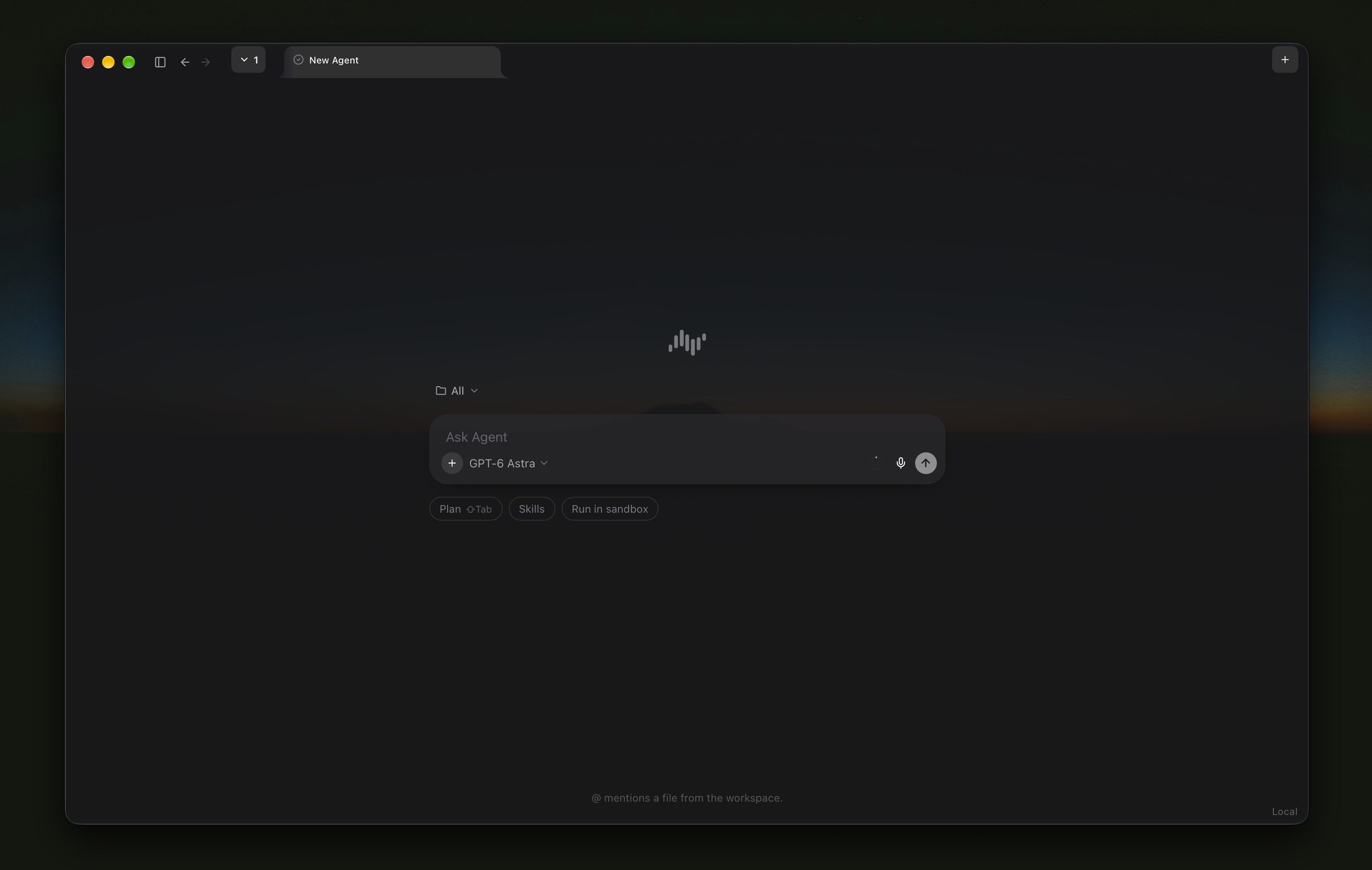
The Composer drives every turn of a session:
- Model Picker, Effort & Fast Mode: Switch between any enabled cloud provider, ChatGPT plan model, or local
llama.cpp/ Ollama model, set thinking effort (Low / Medium / High), or toggle Fast mode. +Menu (Full Keyboard & Hover Navigation):- Toggle Agent vs. Plan mode
- Attach workspace Files
- Toggle Skills and MCP servers
- Pick a Specialist (active Specialists appear as a removable
[Avatar] Otium ×pill right in the Composer toolbar) - Use
ArrowUp/ArrowDown/ArrowRight/ArrowLeft/Enter/Escapeto navigate the+menu and its sub-menus entirely from the keyboard.
- Inline Mentions, Multimodal Attachments & Slash Commands:
@— attach images, PDFs, structures (.pdb,.cif), audio, video, or code files from the session workspace or project folder (or paste images directly from your clipboard withCmd+V/Ctrl+V)/— attach a skill or run a slash command#— reference another chat session (⟦#:SESSION_ID⟧)
Model & Effort Picker
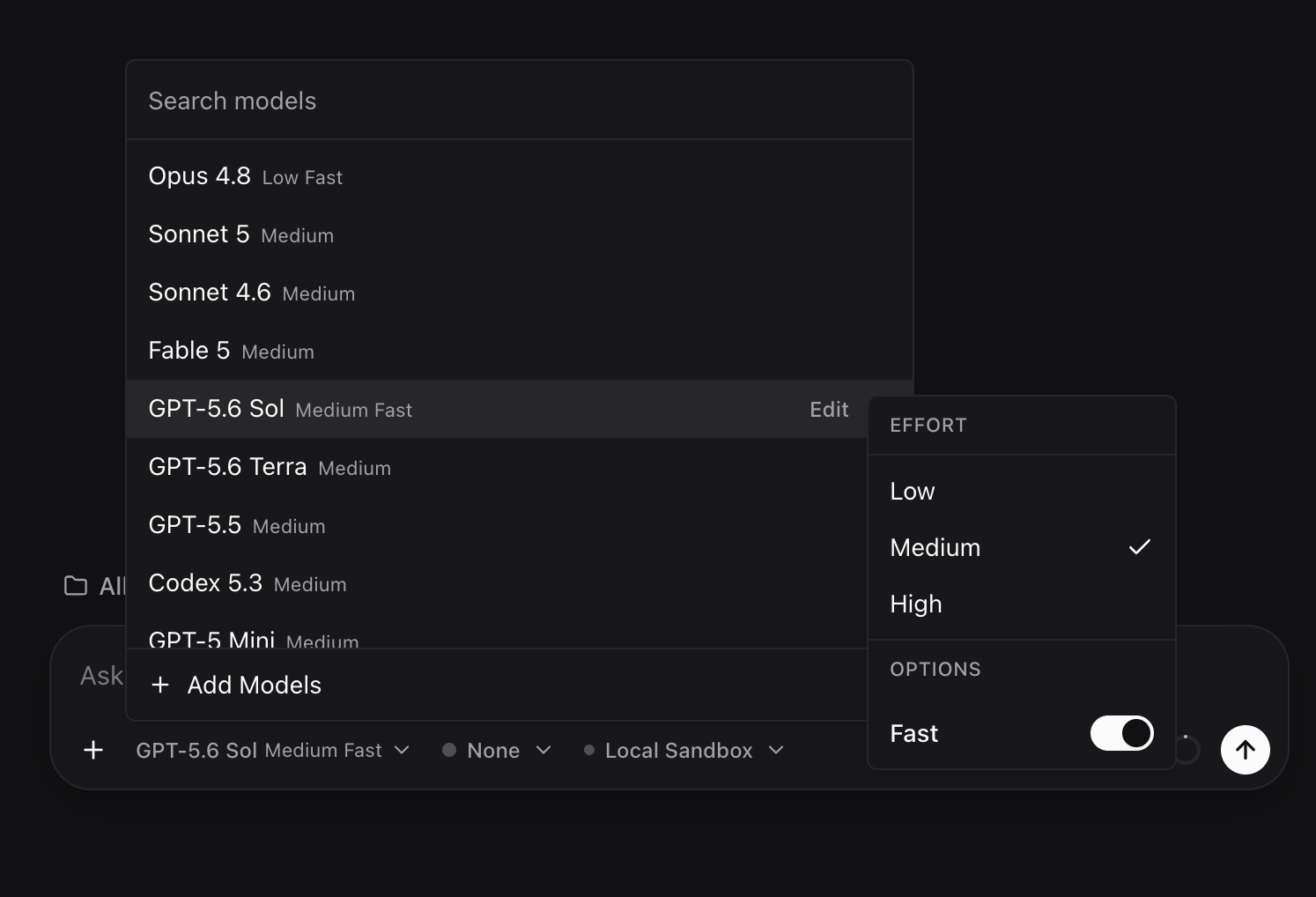
Click the active model pill in the Composer toolbar to search across all enabled cloud and local models, or hover Edit on any model to adjust its reasoning Effort (Low, Medium, High) and Fast mode.
Inline Sandbox Selector (Local vs. Modal Cloud GPU)
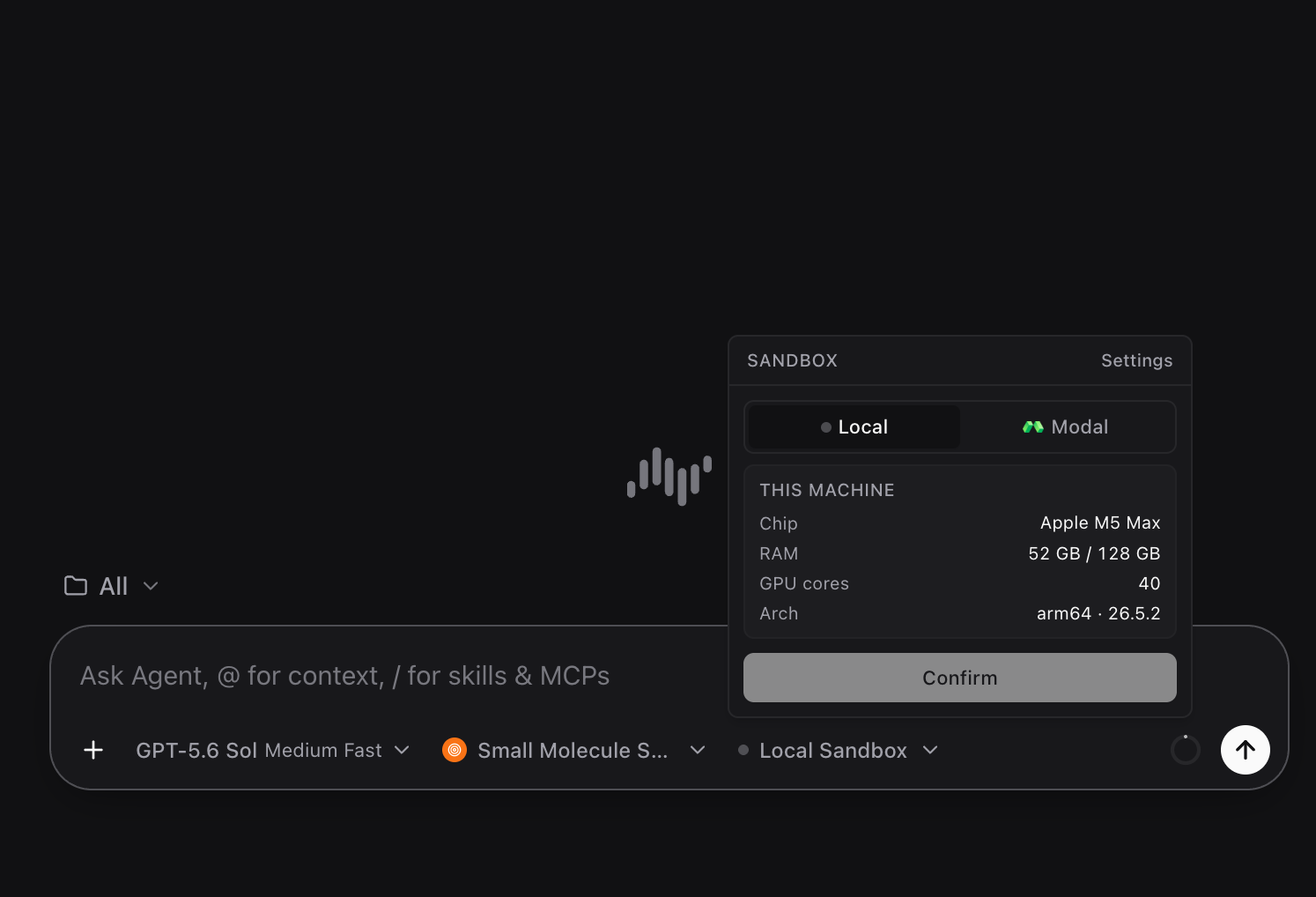
Click the Sandbox pill on the Composer bar to inspect local hardware specs (chip, RAM, GPU cores) or switch the current session to an on-demand Modal Cloud CPU/GPU container (T4, L4, A10, A100, H100). See Sandbox Settings.
Last updated on